

Appearance
Handle a customer enquiry
Inbox brings messages from configured channels into a conversation workflow. Start with the channel and conversation you are responsible for.
Read, respond, confirm
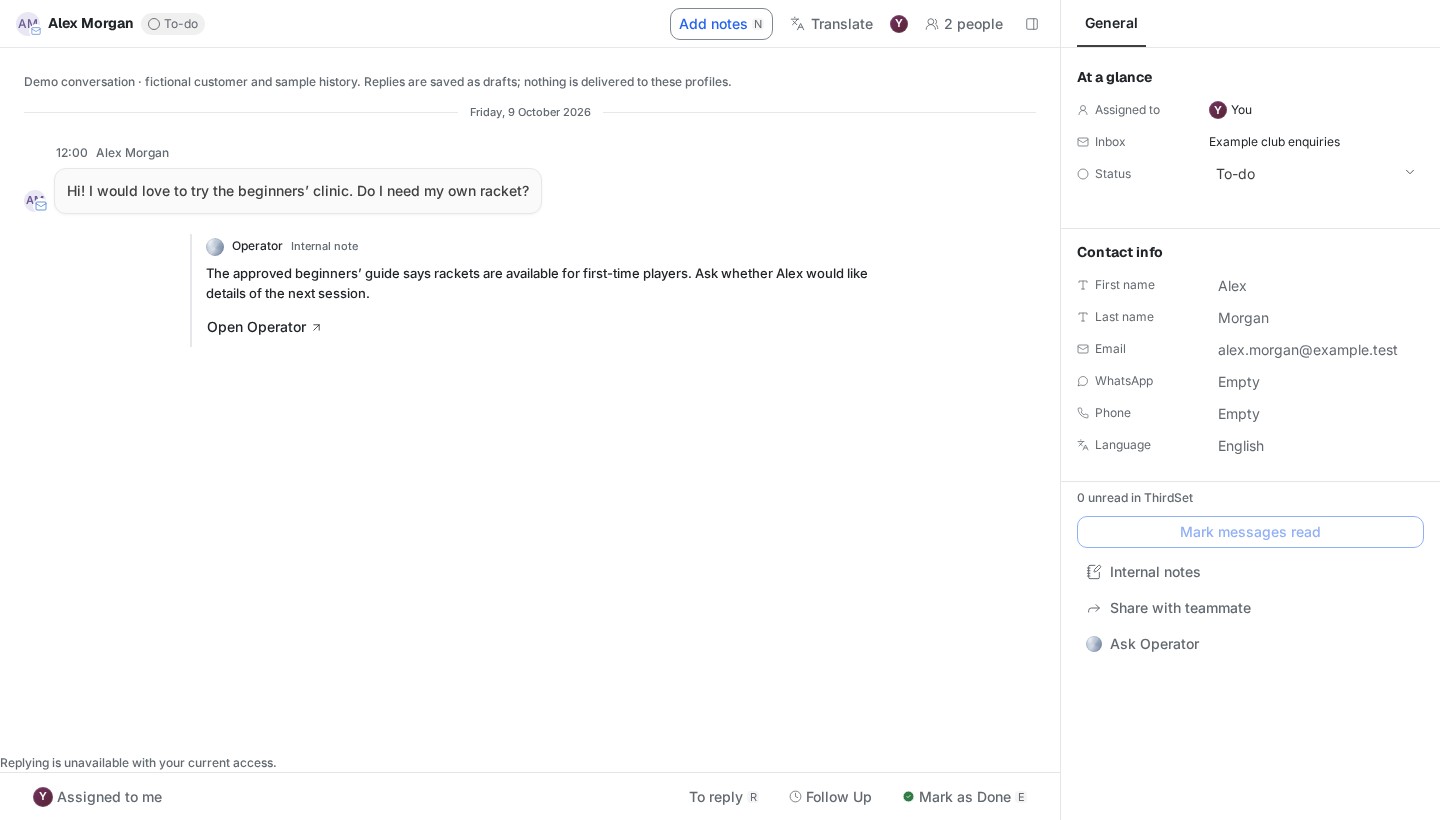
- Open Inbox and choose an inbox or channel. Use search and the work-state filters to find the conversation.
- Read the latest message and relevant history. Check whether someone has already replied or is working on it.
- Review any Operator recommendation. Check names, dates, prices, availability and the selected channel against evidence.
- Write or edit the reply. Review attachments and the recipient before sending.
- Check the recorded send result. Accepted, delivered and read are different outcomes; availability varies by channel.
- Mark the conversation Done when no follow-up remains, or hand it over with a clear owner and next step.
Marking Done changes the workflow state. It is not proof that the customer’s request was fulfilled. New activity may reopen the conversation.
Check your result
The reply has a recorded result, and the conversation is either Done or assigned to someone with a clear next step. If the result says unknown, check the existing attempt before sending another message.
Automatic Operator
Where configured, the internal Operator can review eligible conversations and prepare recommendations. A saved specialist rule may prepare a draft. Human review and provider permissions still apply.
| State | Meaning | What to do |
|---|---|---|
| Queued / Waiting | Review has not started | Check the visible reason or ask your administrator |
| Working | A review is running | Wait for the result before requesting another review |
| Ready | A recommendation is available | Review it against the current conversation |
| Off | Automatic review is disabled | Handle manually or ask an administrator |
| Failed | The attempt did not complete | Read the error and check what completed before retrying |
You can continue handling enquiries manually if Operator is paused. Your administrator can check the daily limit and total AI allowance; a new day does not reset a used-up total allowance.
Handoffs and notes
Use an internal note to explain context, the decision needed and who should act. Keep customer replies separate from internal notes. A mention or handoff is work coordination; check the resulting state before assuming it was received or completed.
Channel restrictions
Messaging windows, templates, account permissions and provider health can limit replies. A linked account is not enough to prove inbound or outbound delivery. See connection checks.
Share a connected inbox
An account owner or permitted administrator can configure Inbox visibility for a connected account. Sharing is separate from granting area access: the member needs Inbox access and must be included in that account's current visibility.
If a colleague cannot see it, check the active workspace, account visibility, excluded members and Inbox permission. Making someone a workspace administrator does not automatically publish a private mailbox.
With Inbox and Operator access, private Operator can read supported conversations from an inbox currently shared with you, where that capability is enabled. It still asks for tool access when needed. Private staff drafts, internal notes and unsent messages are excluded from these shared reads. Reading a shared inbox does not grant permission to send from the account through every Operator tool; use the authorised Inbox reply workflow.