

Appearance
Work with Operator
Operator helps you understand a conversation, find approved club information and prepare the next step. Start with a concrete question and the relevant record context.
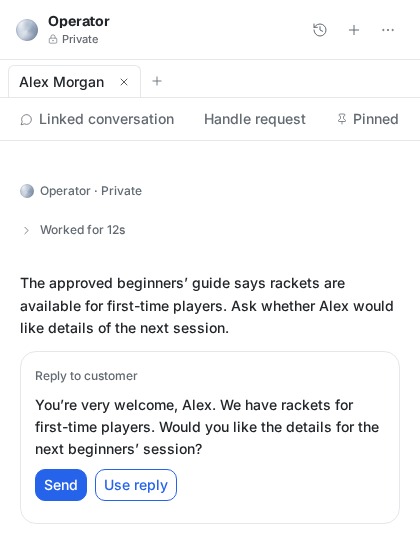
Prepare your first reply
- Open the enquiry in Inbox and bring the conversation into Operator.
- Ask: “Prepare a reply using our approved beginners’ guide. Tell me what still needs confirming.”
- Review any source-access request before allowing it.
- Read the proposed reply. Check the player’s question, names, dates and any promises.
- Use reply brings the proposal into the reply workflow for you to review or edit. Send is an external action: check its recipient and exact content before confirming.
- Check the recorded result before treating the enquiry as answered.
Your result: a reviewed draft, or a reply with a confirmed send result. An answer in Operator by itself is neither.
Ask for a useful outcome
- “Summarise this enquiry and explain what we still need to confirm.”
- “Prepare a reply using the conversation and our approved beginners guide.”
- “Explain this player's recorded relationship with the club and show the source dates.”
- “Help improve this campaign draft using the approved event information.”
An answer reflects the evidence available to your account. Missing information should remain an explicit gap, not become an invented answer.
Review source access
When a tool request appears, check its account, capability and details. Allow once authorises that request. Skip leaves it unexecuted. Grant an ongoing permission only for a capability you intend to reuse; it can be revoked.
Requests may appear one at a time. Approving one read does not mean every source was retrieved. Shared Inbox reads need current Inbox sharing and both Inbox and Operator access. Sharing a mailbox does not give permission to manage its connection or send through every tool.
Review a reply before sending
Check the recipient, channel, language, exact message and any attachments. Source access, a suggested reply and a completed external action are separate states. Review the specific send request and inspect its retained result before considering the enquiry answered.
Marketing campaign preparation does not enable player campaign sending. See current limits.
Return to a conversation
Reopen the existing conversation after navigation or a connection interruption. History and action results help you see what happened. Inspect the latest attempt before repeating a request that may have sent a message.
You can start from an Inbox conversation or a private Operator chat. Supported voice input prepares text: check the transcription, names, dates and language before submitting.
Understand a pause
Operator can pause for an approval, unavailable runtime, changed permissions, daily run limit or AI spending allowance. Ask an administrator to inspect the reason. Creating another request or restarting the application does not reset the allowance.
Each workspace has its own daily run limit and lifetime AI spending allowance. Previous usage and reservations for unfinished attempts still count. Activity in another workspace does not consume this workspace's allowance.