

Appearance
Prepare a campaign
Prepare a club update or an invitation to a beginners’ clinic. Bring the audience, message and team review together before any future delivery.
Preparation only
Player campaign sending is not available in the initial release. Saving a draft, approving content or designing a workflow does not send or schedule messages.
Campaigns and audiences
Define the campaign objective, intended audience, owner and next checkpoint. Use Marketing → Audiences to organize the intended group, and review contact identity and communication permission before any outreach.
Shared campaign audiences use shared People records. Attach an audience to a campaign and review its email and WhatsApp eligibility separately. Private contact selections remain private. Record existing permission evidence only when you have that evidence; an eligible recipient is not proof that delivery is configured.
An audience label or imported contact is not proof of marketing consent. Inbox replies are a separate workflow; they do not enable campaign delivery.
Prepare an email announcement
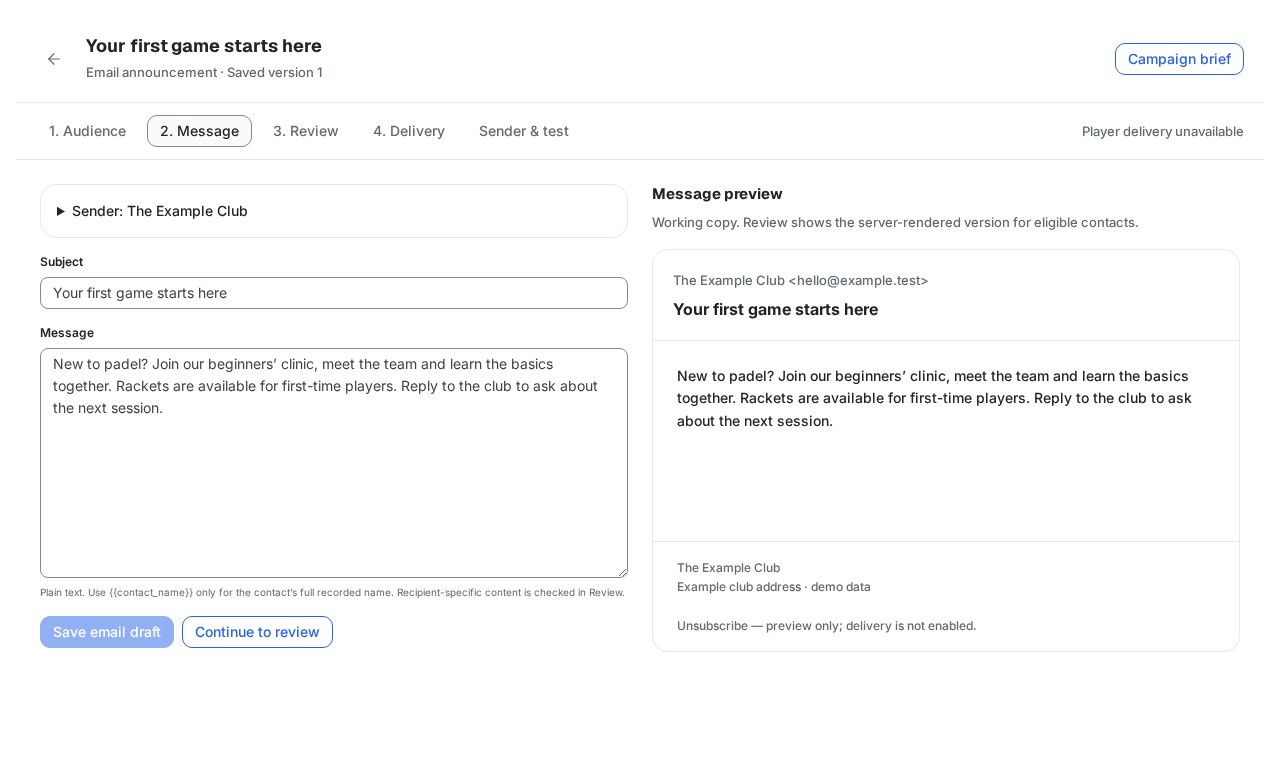
Selecting a campaign opens Email announcement. Use Audience → Message → Review for a one-off invitation or club update.
- Select and save a shared audience.
- Write the subject and message. A workspace administrator with Marketing and Connections access can save the club sender name, From address, Reply-to and postal address. Saving them does not verify the sending domain; use Sender & test for the current connection status.
- Save the email draft. The working preview follows your edits;
uses the full recorded contact name, never an inferred given name. - Create a preparation review to see the saved sender identity, recipient counts, exclusions and rendered recipient previews. Shared addresses are excluded until a single contact is selected.
- If the message, sender, audience, contact details or permission changes, save a fresh review. Historical recipient previews are hidden when the review is stale.
A saved preparation review is not approval to send. Player campaign dispatch is not yet available. The email announcement and workflow draft are separate definitions; editing one does not change the other.
Approve prepared email content
After saving your message and audience, create a fresh preparation review. Check the sender, personalized previews and excluded contacts, then choose Approve prepared content to record a team sign-off. The approval records that exact preparation and recipient list. It does not schedule or send messages.
The approval card shows whether the inputs are still current. If the campaign changes, cancel the approval and create a fresh review. Cancellation keeps the history and remains available when the campaign is closed. After an uncertain response, use Retry same action to confirm the original result.
Your result: a saved preparation and team sign-off, ready to revisit. Approval will never start sending automatically.
Prepare a workflow draft
Open Marketing → Campaigns, select a campaign and choose Automated workflow. The workflow builder lets you prepare a sequence of steps, including message copy and conditional paths. Use the campaign brief for its objective and context; editorial Content records and workflow message copy are separate.
- Choose a starting recipe or edit the workflow steps.
- Review the intended audience, ownership and communication permission.
- Save the draft, then reopen it to check your changes.
- Preview paths using fictional examples. Check both successful and blocked conditions.
- Use Ask Operator to prepare a review of the selected workflow version.
Saving or previewing a workflow does not enroll recipients, send messages or execute tasks. Live triggers and campaign sending are not included yet. An audience label is not proof of consent.
Understand exclusions and withdrawals
In an audience, select Review permission to see why an address is subscribed, unsubscribed or blocked. Recorded player withdrawals and confirmed provider blocks apply across the club's email audiences and duplicate contact records. Staff cannot remove those blocks by recording an opt-in or replacing the sender key. Removing somebody from one audience is a separate action from withdrawing their permission for all email marketing from that club.
Existing withdrawals remain relevant when you prepare an audience. Do not replace existing unsubscribe arrangements during setup: ThirdSet is not yet generating or sending player campaign emails. Ask the setup team to confirm how existing permission records will be carried over.
Audience and review counts reflect blocks already recorded in ThirdSet. They do not prove that all suppressions in a provider account have been synchronized. A new withdrawal makes an earlier preparation review stale; create a fresh review to see the current exclusions.
Administrator setup: sender and staff tests
Ask the person managing your club’s connections to handle this setup. It is optional for drafting a campaign and does not enable player sending.
Connection setup and staff-test checks
Open Sender & test from an email announcement, or Settings → Connections → Channels → Campaign email. Both show the same club connection. Setup and staff tests require separate platform activation; the page explains when either is unavailable.
- Save the sender identity, then connect a dedicated full-access Resend key. Sending-only keys cannot read the domain and delivery information needed for this setup.
- Complete the exact From domain's DNS verification in Resend. Add the callback endpoint and all events shown by ThirdSet in the same Resend account.
- Select Check domain and callback. Changes to the sender or connection require a fresh check.
- Read the fixed message preview and select Send test to my account, when enabled. The recipient is your account email. This test does not use the player audience or alter marketing permission.
- Refresh the retained results. Accepted by Resend means the provider accepted the request. Delivered to the recipient's mail server does not prove that somebody read it or that it reached their inbox. Check provider status retrieves evidence; it does not send another email.
If a result is unknown, reconcile the existing test before requesting another. A replacement credential cannot retry an old test through a different account. Old results remain visible after disconnect; their original signed callback can still settle them, but the removed key cannot be used to poll the old account.
Campaign email is separate from the Inbox Email connection. Passing a staff test does not activate player campaigns, scheduled sends or workflow drafts.
Events and tournaments
Use event records to organise the campaign’s purpose and preparation. Keep interested participants separate from confirmed registrations. Event preparation does not include Work tasks, court bookings, payment collection or a complete competition engine in this release.
Measure actual outcomes
Keep planned, prepared, approved, sent and observed results separate. Product usage analytics shows how people use ThirdSet; it does not establish campaign revenue or booking conversion by itself.